Page 1 of 1
Pianoroll of Radium is nice !
Posted: 22 Jan 2026 21:55
by elode
As I cannot yet work with Radium in the 'tracker' way because of a bug with the keyboard, I am exploring the pianoroll. I am surprised to find something very rare in pianoroll-type sequencers: the possibility of recording glissando notes graphically, directly in the form of diagonal notes.
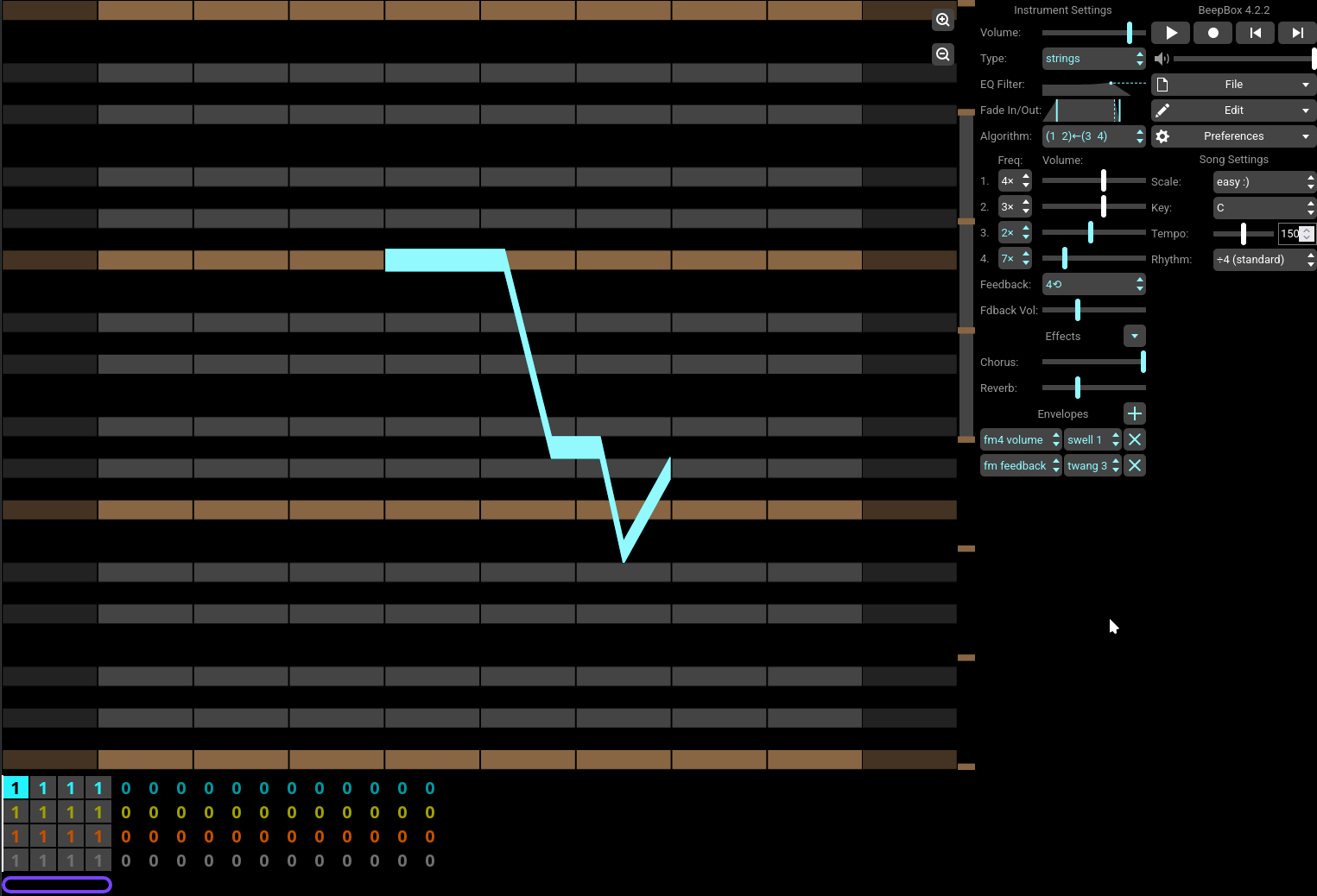
I like it a lot. It’s a bit similar to the way bitwig deals with glissando, but above all with beepbox
https://www.beepbox.co , which is a tool for producing music that is brilliantly simple to use, which seams to go a little further by allowing possibly very long notes with multiple contiguous segments diagonally or straight. In Radium, I didn’t find how to go beyond two related notes. The third note started with its initial attack.
But maybe there is a way... right?
Here is a screenshot of BeepBox :
- Copie d'écran_20260122_225734.png (75.44 KiB) Viewed 231 times
Re: Pianoroll of Radium is nice !
Posted: 23 Jan 2026 08:21
by elode
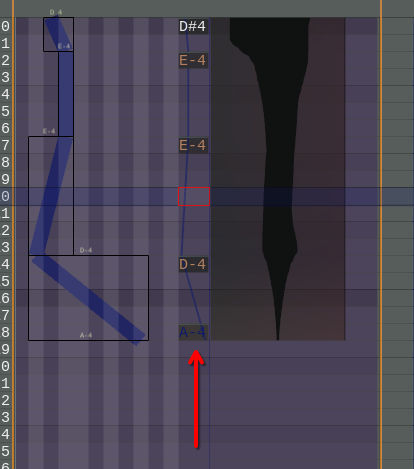
Oh! I hadn’t noticed this column (see the image). It allows successive glissandos on the same note. Magnificent!
- Copie d'écran_20260123_091600.png (28.83 KiB) Viewed 227 times
I hadn’t seen this option in the manual.
Re: Pianoroll of Radium is nice !
Posted: 30 Jan 2026 09:29
by kjetil
Yeah, editing pitch in the note-text column is probably the fastest way to add several glissandos, and you're right, I've forgotten to add this feature to the manual! In case you didn't find out (and only used the mouse to add glissando inside the note-text subtrack), the keybinding to add/edit note/pitch is
.
But you can do it inside the piano roll as well! Right-click a piano-note and select "add node at mouse position". Maybe this interface (naming/position/etc.) can be improved?
Re: Pianoroll of Radium is nice !
Posted: 07 Feb 2026 10:59
by elode
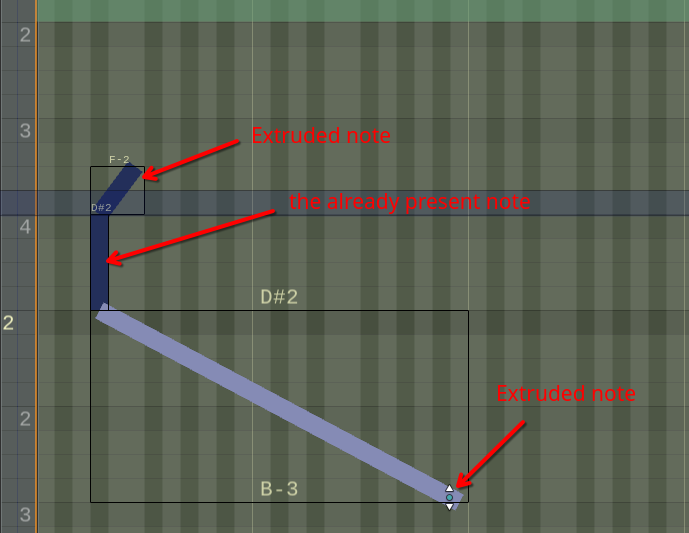
Instinctively, I would like to be able to "extrude" a new note from an existing note, a bit like extruding a new geometry from an existing geometry in Blender.
In Radium, it could be concretized like this:
1. place the mouse pointer over an existing note, at one of its ends.
2. press and hold the Shift (or Alt?) key + click and drag to the target note.
3. Release the mouse button to fix.
We could thus extend a note with glissando before the note AND after the note.
An example of the result of this operation before AND after the already present note:
- Radium_2026_FilDeCourrier_003.png (35.55 KiB) Viewed 89 times
Re: Pianoroll of Radium is nice !
Posted: 07 Feb 2026 12:57
by elode
If the Shift (or Alt) key is selected for this extrusion operation, why not use it right from the creation of a note to directly allow a glissando as soon as the note is created.
So, to create directly a note with a glissando, we would have:
```
Shift+Click held > drag to desired direction
> Release the mouse button to apply.
```
Re: Pianoroll of Radium is nice !
Posted: 07 Feb 2026 13:02
by kjetil
It has to be left alt though since left shift is used to limit mouse movement to move vertically only.
Re: Pianoroll of Radium is nice !
Posted: 07 Feb 2026 13:05
by kjetil
Oh, and left alt is used for moving all nodes simultaneously. And left extra is to limit in horizontal direction. And left ctrl is for finetuning. So there are no more modifier keys available on the left side of the keyboard.
Re: Pianoroll of Radium is nice !
Posted: 07 Feb 2026 13:15
by elode
Perhaps Ctrl+Shift? or Ctrl+Alt?
Re: Pianoroll of Radium is nice !
Posted: 08 Feb 2026 15:47
by elode
Pianoroll, "Extrusion" as in Blender?
In Radium, if keyboard shortcuts become rare, a solution would be to use the Blender-style shortcuts:
For example, in Blender, to extrude a geometry, just press the "E" key (for Extrude) without having to click somewhere with the mouse. The end of the extrusion "sticks" then to the mouse pointer which can then be moved to the desired location. To fix, click once with the left button.
In the pianoroll of Radium, it could be concretized like this:
1. move the mouse cursor over one of the ends of a note (when we see the icon <=> appear),
2. press the "E" key (extrude) once (release immediately),
3. the extruded end (beginning or end of the note as the case may be) then appears "hooked" to the mouse pointer,
4. Move the mouse to the desired location,
4. Finally, a simple left-click fixes the position.